The Trip Summary screen
Every drive ends on this screen. It shows the route, the stats, and every "practice activity" LearnerLog auto-labeled along the way — plus quick ways to fix anything that got labeled wrong.
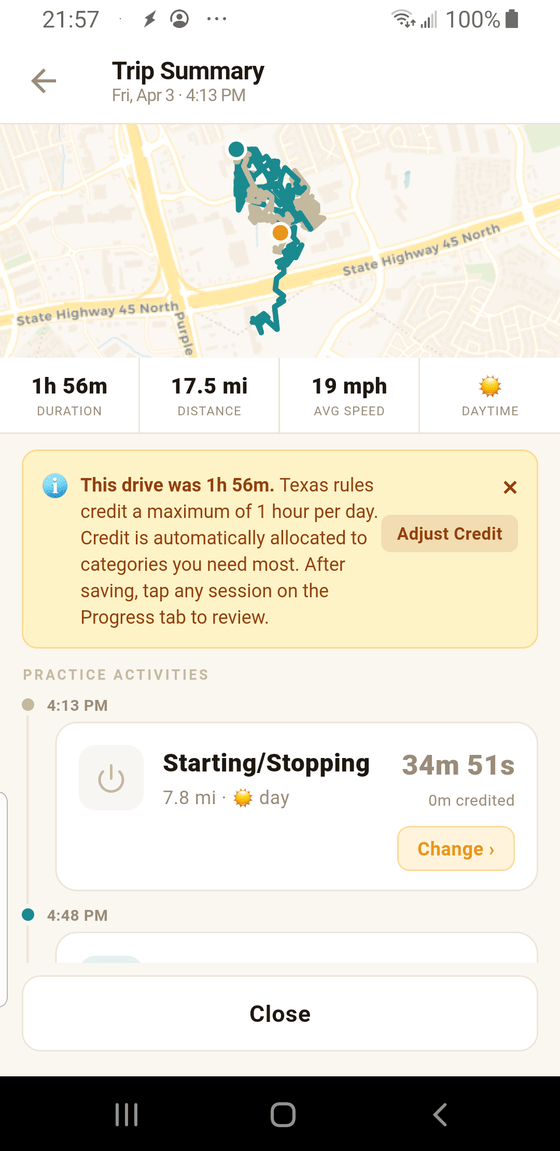
- 1 Route map. The path your teen drove, colored to match the practice activity segments below. Tap a segment in the list to zoom the map to that piece.
- 2 Stats row. Total duration, distance, average speed, and whether the drive counts as daytime or nighttime. These are the numbers that feed the Progress dashboard.
- 3 Daily cap info card. Only appears when a single drive is longer than 60 minutes. Texas rules credit at most 1 hour per day, and this card explains how LearnerLog split that 60-minute credit across the categories you need most. Tap Adjust Credit to override it. See the credit cap guide for details.
- 4 Change ›. Opens an editor where you can pick a different category, split the segment into multiple activities (e.g. 20 min City + 10 min Parking), or adjust credit. See the reassign, split, and merge guides.
The practice activities list
Below the stats, each segment of the drive shows up as its own card: a category icon (city, expressway, parking, etc.), distance and whether it was day or night, the duration, and a Change › button. The first card's timestamp matches the start of the drive; each next card starts where the previous one ended, and the last time shown is "end" — when you tapped STOP.
Between two adjacent cards with the same category, LearnerLog shows a little "Merge" pill — tap it to combine them into a single cleaner segment. See merge segments for the details.
Adding a manual activity
At the bottom of the list there's a + Add practice activity button. Use it for drills that GPS can't detect on its own — parking in a lot, backing down a driveway, turnabouts in a cul-de-sac — any low-speed practice. The new entry is tacked on to the end of this drive. Details in the add-activity guide.
Closing the screen
Tap Close at the bottom to go back to the home screen. If you made edits and haven't saved them, LearnerLog asks first so you don't lose them by accident.